ZPL vs EPL vs TSPL: What They Are and How to Know Which Your Barcode Printer Supports
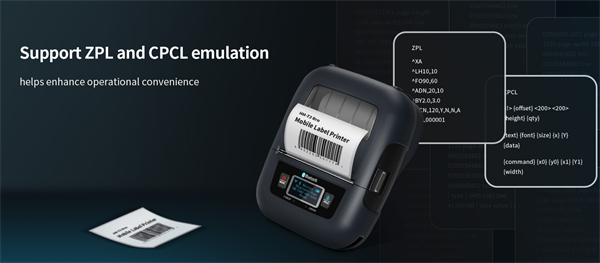
ZPL, EPL, and TSPL are barcode printer command languages used to control how labels are printed, including layout, barcodes, fonts, and media handling.
To determine which language your printer supports, check the manufacturer specifications, printer self-test page, supported emulation modes, or send a simple test command to see how the printer responds.
What Is a Barcode Printer Language?
A barcode printer language is a set of text-based commands that tells a printer what to print and how to print it.
Instead of sending a “picture” like office printers, barcode printers receive instructions such as:
• Where to place text or barcodes
• Which barcode symbology to use
• Label size and orientation
• Print speed and darkness
• Media calibration and cutting behavior
If the printer receives a language it does not understand, it may:
• Print raw code as text
• Print nothing at all
• Produce misaligned or incomplete labels
This is why printer language compatibility is critical in barcode systems.
What Is ZPL (Zebra Programming Language)?
ZPL is a proprietary printer language originally developed by Zebra Technologies.
Key characteristics:
• Widely adopted across industrial barcode printing
• Strong ecosystem support (ERP, WMS, MES systems)
• Highly flexible for complex label layouts
• De facto “industry standard” language
Typical use cases:
• Logistics & warehousing
• Manufacturing traceability
• Retail distribution centers
• Healthcare labeling
Many non-Zebra printers support ZPL emulation to ensure compatibility with existing systems.
What Is EPL (Eltron Programming Language)?
EPL is an older language developed by Eltron (later acquired by Zebra).
Key characteristics:
• Simpler than ZPL
• Optimized for basic label printing
• Less flexible for complex layouts
• Gradually phased out in modern systems
Typical use cases:
• Legacy retail systems
• Older desktop barcode printers
• Simple barcode + text labels
Today, EPL is mainly encountered in legacy environments.
What Is TSPL (TSC Printer Language)?
TSPL is a command language developed by TSC and widely adopted by many Asian barcode printer manufacturers.
Key characteristics:
• Simple syntax and easy learning curve
• Optimized for cost-effective printers
• Popular in OEM and private-label devices
• Strong presence in small-to-mid-scale deployments
Typical use cases:
• Small manufacturing lines
• Retail stores
• Logistics stations
• OEM-integrated printers
TSPL is commonly used where simplicity and affordability are priorities.
ZPL vs EPL vs TSPL: Key Differences at a Glance
Feature | ZPL | EPL | TSPL |
Origin | Zebra | Eltron (Zebra legacy) | TSC |
Complexity | High | Low | Medium |
Industry adoption | Very high | Declining | High (OEM-focused) |
Best for | Complex, scalable systems | Legacy systems | Cost-sensitive deployments |
Emulation support | Widely emulated | Limited | Sometimes emulates ZPL |
Learning curve | Steeper | Easy | Easy |
How to Check Which Printer Language Your Machine Supports
Method 1: Check the Official Specification Sheet
Look for sections labeled:
• “Printer Language”
• “Command Language”
• “Emulation”
Common entries include:
• ZPL / ZPL II
• EPL
• TSPL
• ZPL Emulation
If the language is not clearly listed, move to the next method.
Method 2: Print the Self-Test or Configuration Page
Most barcode printers can print a self-test page by holding a button during power-on.
The configuration label often shows:
• Firmware version
• Supported languages
• Active emulation mode
This is one of the fastest and most reliable checks.
Method 3: Send a Simple Test Command
Send a basic command via USB, Ethernet, or serial connection.
Example logic:
• If ZPL commands print correctly → ZPL supported
• If commands print as text → language not recognized
This method is commonly used by system integrators during deployment.
Method 4: Check Driver or Software Settings
Many drivers allow selecting:
• Printer language
• Emulation mode (e.g., ZPL emulation)
However, software compatibility does not guarantee native language support, so always confirm at the hardware level.
Common Compatibility Issues and Misconceptions
❌ “If the printer connects via USB, language doesn’t matter”
Wrong. USB only handles communication, not command interpretation.
❌ “All barcode printers support ZPL”
Not true. Many support ZPL emulation, not native ZPL.
❌ “Installing labeling software solves language issues”
Software still outputs printer-language commands in the background.
When Printer Language Matters (and When It Doesn’t)
Printer language matters most when:
• Integrating with ERP / WMS / MES systems
• Migrating from one printer brand to another
• Using custom label templates or scripts
• Scaling multi-site operations
Printer language matters less when:
• Using standalone PC printing
• Printing simple labels from basic drivers
• Operating in low-volume, non-integrated environments
Final Thoughts: Choosing the Right Language Strategy
Understanding printer languages is not about memorizing syntax—it’s about reducing integration cost, avoiding deployment errors, and ensuring long-term system compatibility.
Before selecting or replacing a barcode printer, always verify:
✅ Native language support
✅ Emulation capabilities
✅ Software and system requirements
Doing this early can save significant time, cost, and operational risk later.
Recent posts
Previous article