How to Print Barcode Labels for Products: A Small Business Guide
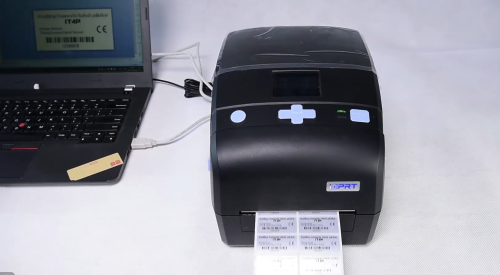
To print barcode labels for products, you need three things: the right product identifier, a barcode generated from that data, and a printing method that fits your labeling volume.
For a small business, this might mean printing a Code 128 barcode from an internal SKU for an inventory tag, printing a UPC-A barcode on a retail product label, or adding a barcode, price, and product name to a food label.
A regular inkjet or laser printer can handle occasional label sheets. If you regularly print different SKUs, quantities, or labels on demand, a desktop thermal barcode printer is usually a more practical workflow.
The basic process is:
Product identifier → Barcode → Label template → Print → Scan and verify
Do You Need an SKU Barcode or a UPC/EAN for Your Products?
Use an internal SKU barcode when the code only needs to work within your own inventory or POS system. If retailers, distributors, or marketplaces need to identify the product outside your business, determine whether you need a GTIN represented in a UPC or EAN barcode before printing.
This distinction matters because creating a barcode image is not the same as assigning a valid retail product identity.
For example, a handmade soap business might assign:
SOAP-LAV-100
as an internal SKU for a 100 g lavender soap. That SKU can be encoded in a Code 128 barcode and printed on an inventory tag or product label. When employees scan it, the POS or inventory system can retrieve the corresponding product record.
A packaged food brand supplying products to retailers may instead need a GTIN encoded in a UPC-A or EAN-13 barcode. GS1 US notes that different product variations may require separate identifiers—for example, different sizes, colors, styles, or package configurations can represent distinct trade items.
A practical starting point is:
Where the barcode will be used | Typical approach |
Internal stock management | SKU or internal product ID |
Your own shop or POS system | Internal barcode may be sufficient |
Retail distribution | GTIN / UPC / EAN |
Marketplace sales | Follow the marketplace's identifier rules |
Do not generate a random 12-digit number, turn it into a UPC-looking barcode, and assume it is a legitimate retail UPC. A barcode generator creates the visual symbol; it does not assign ownership of a GTIN.
For internal product tracking, Code 128 is useful because it can encode alphanumeric product IDs such as COFFEE-250-BLK or JAM-STR-12OZ. For consumer retail products, UPC-A and EAN-13 are common formats.
What Is the Best Way to Print Barcode Labels for a Small Business?
Use an inkjet or laser printer if you only print barcode labels occasionally. Use a thermal barcode printer when you regularly print different SKUs, individual labels, or changing quantities from rolls.
A barcode does not technically require a special barcode printer. What changes as a business grows is the labeling workflow.
Your labeling situation | Practical starting option |
Testing a new product | Inkjet/laser + label sheets |
Small batches of identical labels | Inkjet/laser + label sheets |
Different SKUs printed regularly | Thermal barcode printer |
One or a few labels at a time | Thermal barcode printer |
Short-life price or inventory tags | Direct thermal |
Longer-lasting product labels | Thermal transfer |
When a regular printer is enough
A home or office inkjet or laser printer can work well when a small business only needs a few sheets of product barcode labels.
For example, a bakery introducing five packaged products could create a sheet containing the product name, price, SKU, and barcode. This avoids buying another printer while sales volume is still low.
A regular printer is also useful when the label needs full-color branding, such as a decorative food label or cosmetics label.
The limitation appears when product data starts changing frequently. If you need 25 labels for one SKU, four for another, and seven replacement inventory tags, sheet labels become less convenient. Partial sheets, print alignment, and repeated layout changes add unnecessary work.
When a thermal barcode printer makes more sense
A desktop thermal barcode printer is designed around on-demand roll printing. You can print one label, 50 labels, or different quantities for several SKUs without filling an entire sheet.
That makes it especially useful for:
- retail price labels;
- food product labels;
- inventory tags;
- SKU labels;
- warehouse bin labels;
- product variation labels;
- batch-based product identification.
The main advantage is therefore not that barcodes require thermal printing.
A barcode printer is useful because it simplifies repeated variable-label printing—not because a barcode technically needs a special printer.
For print technology, keep the decision simple.
Direct thermal works well for shorter-life labels such as temporary inventory tags, price labels, and many logistics labels.
Thermal transfer is usually the better starting point when a product barcode must remain readable for longer periods or may face moisture, abrasion, refrigeration, or frequent handling. The ribbon transfers ink onto paper or synthetic label media, providing more durable output.
Printer resolution matters mainly when space becomes tight. 203 dpi is commonly suitable for standard-size 1D product barcodes and normal text. Smaller product labels, fine text, or denser codes may justify 300 dpi. Higher resolution, however, cannot fix a barcode that has simply been designed too small.
How Can a Small Business Print Barcode Labels in Bulk?
For bulk barcode label printing, keep product information in a structured data source such as Excel, CSV, POS, or inventory software and connect those fields to one reusable label template. Do not manually redesign a label for every SKU.
Consider a small specialty food business with three products:
Product | SKU | Price | Labels Needed |
Strawberry Jam 12 oz | JAM-STR-12 | $7.95 | 30 |
Blueberry Jam 12 oz | JAM-BLU-12 | $7.95 | 15 |
Honey 8 oz | HONEY-8 | $6.50 | 20 |
The business only needs one label template.
That template might contain:
Product Name
SKU
Price
Barcode
The label software then maps each column from the Excel or CSV file to the corresponding field. The SKU can also feed the barcode object automatically—for example, generating a different Code 128 symbol for JAM-STR-12, JAM-BLU-12, and HONEY-8.
The print quantity field tells the workflow how many labels each product needs.
Instead of manually editing 65 individual labels, the business changes the product data once and lets the template generate the required labels. The same principle works whether the output is a small retail price sticker, a food label, an inventory tag, or a larger product identification label. This becomes increasingly important as the product catalog grows.
For many small businesses, the first major bottleneck in barcode printing is not printer speed—it is managing changing SKU data and print quantities without creating labels manually.
A well-structured workflow looks like this:
Excel / CSV / POS / Inventory System
→ Reusable label template
→ Product fields mapped automatically
→ Barcode generated from SKU or GTIN
→ Required quantity printed
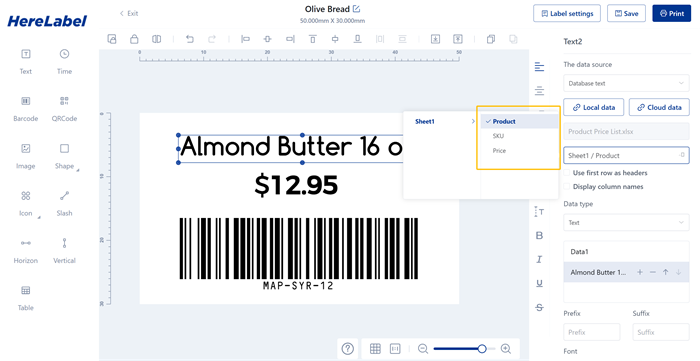
This is also where a roll-based barcode printer becomes more useful than an office printer. If today's order requires 20 labels for one SKU, three for another, and one replacement label for a third product, you can print exactly those quantities without arranging another sheet.
What Should You Check Before Printing the Full Batch?
Always print and scan one finished barcode label before producing the full batch. A barcode that looks correct on a computer screen can still fail after it is resized, printed, or applied to the actual product.
Before printing hundreds of product labels, check five things:
1. Scan the physical barcode. Use the scanner, mobile computer, or POS system that will actually read the label.
2. Confirm the correct product appears. A perfectly scannable barcode is still wrong if it points to the wrong SKU or GTIN.
3. Check print scaling. Avoid accidental “Fit to Page” settings that change the intended barcode dimensions.
4. Keep clear space around the barcode. Text, borders, graphics, or other label elements should not crowd the barcode's required quiet zones.
5. Test the label on the real product. A label that works on a flat carton may behave differently on a small bottle, frozen food package, curved jar, plastic container, or frequently handled inventory asset.
Barcode size, contrast, printer settings, label material, ribbon compatibility, and quiet zones can all affect scan performance. PrinterJournal's barcode troubleshooting guidance also identifies issues such as insufficient contrast, incorrect X-dimension, missing quiet zones, unsuitable media, and printer settings as common causes of scanning failures.
The practical rule is simple:
Do not approve a barcode from the screen. Approve the printed label after it has been scanned in the real workflow.
For a small business, barcode printing does not need to start with an expensive system. Start with the identifier your workflow actually requires, choose the simplest printing method that fits your volume, and move to a thermal barcode printer when repeated SKU-based and variable-data printing makes sheet labels inefficient.
The goal is not merely to print a barcode. It is to create a repeatable product-labeling process that remains accurate as your inventory and product range grow.
Recent posts
Next article