Top 10 Must-Know Specs Before Buying a Barcode Printer
When you’re shopping for a barcode printer, the choices can feel endless. Some promise “industrial durability,” others highlight “photo-quality printing.” But when you strip away the marketing talk, what really matters? Understanding the core barcode printer specs—the ones that impact print quality, cost, and longevity—can make or break your investment.
Let’s walk through the 10 key specifications you should always check before buying.
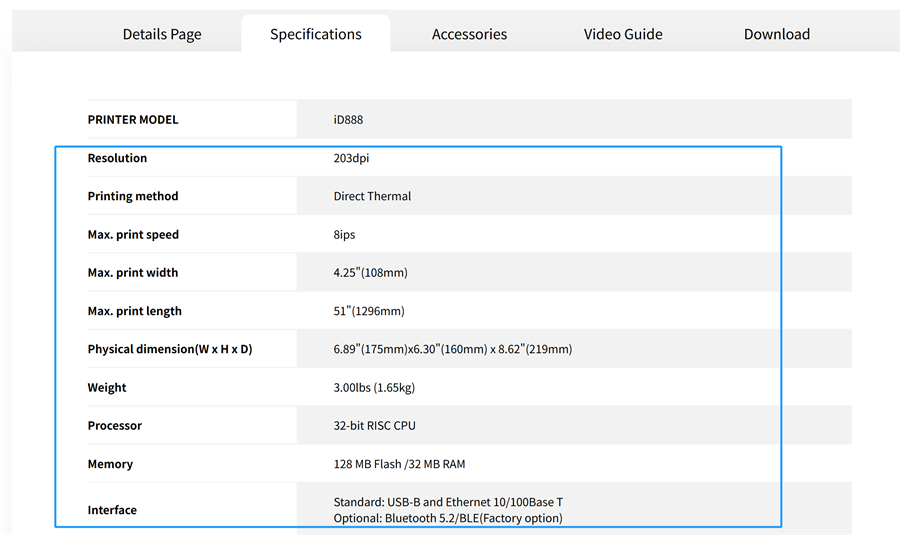 1. Print Resolution (DPI) — The Foundation of Clarity
Print resolution, measured in dots per inch (DPI), defines how sharp and readable your labels will be. Most barcode printers offer 203, 300, or 600 DPI options.
203 DPI: Ideal for standard shipping and warehouse labels.
300 DPI: Better for small text or detailed graphics.
600 DPI: Perfect for tiny, high-density barcodes in electronics or healthcare.
Interestingly, higher DPI isn’t always “better.” It’s about matching clarity with your label size and use case.
2. Print Speed (IPS) — The Hidden Time-Saver
Print speed, measured in inches per second (IPS), determines how fast your labels roll out. A printer rated for 6–12 IPS suits most industrial operations, while 4–6 IPS fits desktop or office setups.
If you’re printing thousands of labels a day, those extra seconds per print job matter. Fast printing keeps your production line flowing—and your team less frustrated waiting for each batch to finish.
3. Print Method — Direct Thermal vs. Thermal Transfer
Barcode printers mainly use two technologies:
• Direct Thermal: Uses heat-sensitive labels, great for short-term use (like shipping).
• Thermal Transfer: Uses ribbon-based printing, offering longer label life and resistance to heat, light, and moisture.
If your labels need to last longer than a few weeks, thermal transfer printing is the smarter choice.
4. Media Compatibility — Label Width and Roll Size
Before buying, check the media width and roll capacity. Desktop printers typically handle labels up to 4 inches wide, while industrial models can go 6–8 inches or more.
The key thing to remember is that larger rolls mean fewer changeovers—and fewer interruptions on the line.
5. Printhead Durability — The Cost of Longevity
The printhead is your printer’s heart. It’s also one of the most expensive parts to replace. Printhead life is often rated in kilometers of printed media or million inches printed.
To extend its life:
• Use high-quality ribbons and labels.
• Clean the printhead regularly.
• Avoid excessive print pressure settings.
In practice, we often see that a well-maintained printhead can last twice as long as expected.
6. Memory and Processor — For Smooth, Lag-Free Printing
Ever noticed delays when sending large print jobs? That’s where your printer’s memory and processor come in.
A barcode printer with at least 64 MB of RAM and a fast processor can handle complex label designs, fonts, and graphics without stalling. For enterprise use, consider models with expandable memory or built-in storage for frequently used templates.
7. Connectivity Options — Think Beyond USB
Modern workflows need flexibility. That’s why the best barcode printers support multiple connections:
• USB for basic setups.
• Ethernet for network printing.
• Wi-Fi or Bluetooth for mobile and wireless environments.
If your system integrates with ERP or WMS software, make sure the printer supports ZPL or TSPL command languages for smooth compatibility.
8. Construction Material — Plastic vs. Metal
Here’s where durability really shows. Plastic-cased desktop printers work great for offices and retail. But if your environment involves dust, heat, or vibration, go for an all-metal industrial barcode printer.
It’s a simple trade-off: pay more upfront, save on repairs later.
9. Label Sensors — Small, But Smart
Sensors detect label gaps, black marks, or continuous media. Without them, your prints could misalign—causing wasted labels and headaches.
Advanced models offer auto-calibration sensors that adjust automatically when you switch label types. A small feature, yes—but one that can save hours of downtime.
10. Software & Integration Support — Don’t Overlook It
Even the best hardware struggles without solid software support. Check if your barcode printer works with:
• Popular label design tools (like BarTender or NiceLabel).
• Remote management systems for monitoring multiple printers.
• Cloud printing or mobile app integration if your team works across sites.
• The smoother your software integration, the faster your operation scales.
Final Thoughts: Specs That Match Your Real Needs
Choosing a barcode printer isn’t about chasing the highest DPI or fastest speed. It’s about matching printer specs to your real-world tasks. A small retailer needs simplicity; a factory floor demands endurance and automation.
Before you buy, ask: How often will we print? What kind of labels do we need? How long must they last?
Because when your barcode printer aligns with your workflow, you’re not just buying hardware—you’re investing in consistency, efficiency, and peace of mind.