How to Print Barcodes in Word: A Simple Guide and When to Use a Barcode Printer
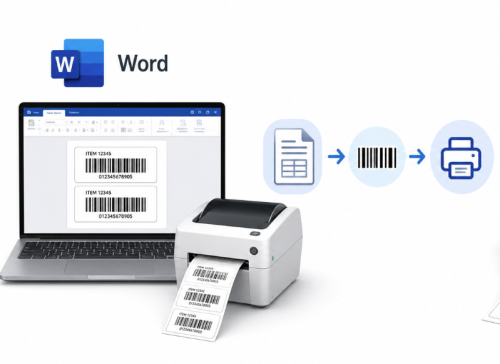
Many people assume that creating barcode labels requires professional software or specialized equipment. In reality, if you only need a few simple barcodes, Microsoft Word can handle the basic job.
For example, a small office may need barcode labels for equipment tracking, document management, or internal inventory. In these situations, creating a barcode in Word can be a quick and practical solution.
However, printing a barcode and building a reliable barcode labeling workflow are two different things.
Word can help you create a barcode, but businesses that rely on barcode scanning every day often need dedicated barcode printing solutions to maintain consistency, durability, and efficiency.
This guide explains how to print barcodes in Word, what methods are available, common problems to avoid, and when a barcode printer becomes a better choice.
Can You Create and Print Barcodes Directly in Microsoft Word?
Yes, you can create and print barcodes in Microsoft Word, but Word does not work as a dedicated barcode generation platform.
Unlike professional barcode software, Word does not include a complete barcode management system. Instead, users usually rely on additional methods such as barcode fonts, add-ins, or external barcode generators.
The basic workflow is usually:
Barcode data → Barcode generator → Insert into Word → Print
This approach works well for simple applications, such as:
· office asset tags
· personal inventory projects
· small document tracking systems
· occasional barcode labels
For example, an office manager may create labels for laptops, monitors, or files without needing a full inventory management system.
The limitation appears when barcode printing becomes a daily operational task. Managing hundreds or thousands of labels manually in Word can quickly become inefficient.
How Do You Print a Barcode in Word Step by Step?
The exact process depends on the tool you use, but the general workflow is straightforward.
1. Choose the right barcode format
The barcode type should match the application.
Common examples include:
Code 128
Often used for:
· inventory tracking
· warehouse identification
· internal product labeling
UPC or EAN
Commonly used for:
· retail products
· consumer goods
QR Code
Suitable for:
· website links
· larger amounts of digital information
Choosing the correct barcode format matters because not every barcode works for every scanning environment.
2. Generate the barcode
Users can create barcodes through:
· barcode fonts installed in Word
· barcode add-ins
· online barcode generators
The generated barcode is then inserted into the Word document like an image or formatted text element.
3. Adjust the barcode size carefully
This step is often overlooked.
A barcode should not be stretched or compressed randomly. Changing the proportions can affect the spacing between bars and reduce scan reliability.
The barcode should maintain:
· correct dimensions
· sufficient white space around the code
· clear contrast between bars and background
4. Print and test the barcode
Before using the labels in real applications, always test scanning.
A barcode that looks acceptable on screen may fail after printing because of:
· low resolution
· poor contrast
· incorrect scaling
· unsuitable paper
Testing the final printed result is more important than simply confirming that the barcode appears in Word.
Which Barcode Types Work Best for Microsoft Word?
Microsoft Word can work with many barcode formats, but the best choice depends on the purpose.
Code 128 for inventory and internal tracking
Code 128 is widely used in business environments because it can encode a wide range of characters while maintaining a compact size.
It is commonly found in:
· warehouses
· manufacturing facilities
· asset management systems
UPC and EAN for retail products
Retail environments often use standardized product codes such as UPC and EAN.
These codes connect products with point-of-sale systems and retail databases.
QR Codes for digital information
QR codes are useful when users need access to additional information beyond basic identification.
For example:
· product pages
· manuals
· digital records
However, choosing a barcode should depend on the workflow, not simply on which format is easiest to create.
Why Do Barcodes Printed from Word Sometimes Fail to Scan?
This is one area where many basic barcode guides provide incomplete information.
Creating a barcode is easy. Creating a barcode that works reliably in real conditions is more complicated.
Common problems include:
Incorrect scaling
A barcode may look fine in Word but fail after being resized.
Barcode scanners depend on precise patterns. Small changes to bar width or spacing can affect readability.
Poor print quality
Low contrast or unclear edges can reduce scanning performance.
This is especially important for small labels used on:
· electronic devices
· tools
· inventory items
Wrong barcode settings
Some barcode formats require specific data structures. A barcode may be visually correct but still contain incorrect information.
Unsuitable printing equipment
A standard office printer may work for occasional barcode printing, but it is not designed for continuous label production.
Professional barcode printing systems are optimized for:
· consistent output
· label materials
· barcode readability
· repeated scanning
When Should You Use a Barcode Printer Instead of Microsoft Word?
Microsoft Word is useful for simple, occasional barcode creation.
It is a practical option when you need:
· a small number of labels
· basic asset identification
· temporary tracking tags
However, a dedicated barcode printer becomes more suitable when barcode labels are part of daily operations.
Typical applications include:
· shipping labels
· warehouse inventory
· retail operations
· manufacturing tracking
· logistics management
A barcode printer provides advantages that Word cannot offer:
Consistent print quality
Dedicated printers are designed to produce clear, repeatable barcode output.
Faster label production
Instead of manually creating documents, companies can print labels directly from inventory or warehouse systems.
Better label durability
Many business environments require labels that survive handling, transportation, or long-term storage.
For smaller operations, a desktop barcode printer may be enough. Larger warehouses and manufacturing environments often use industrial barcode printers designed for high-volume workflows.
What Makes a Barcode Printer More Reliable for Label Printing?
The biggest difference between Word printing and professional barcode printing is not simply speed.
It is reliability.
A complete barcode printing workflow connects:
Business data
↓
Barcode software
↓
Barcode printer
↓
Physical label
↓
Scanning system
This creates a repeatable process where every label follows the same standard.
Thermal printing technology is widely used in barcode applications because it provides fast, reliable label production without requiring traditional ink cartridges.
For applications requiring longer-lasting labels, thermal transfer printing is often preferred because it produces durable output suitable for industrial environments.
Final Thoughts
Microsoft Word can be a convenient way to print barcodes when the requirement is simple and occasional.
But barcode printing is not only about creating a barcode image. The real goal is producing labels that remain accurate, readable, and reliable throughout their entire use cycle.
For personal projects or small office tasks, Word may be enough.
For businesses managing inventory, logistics, or daily scanning operations, a dedicated barcode printer and professional labeling workflow provide much better long-term reliability.
The difference is simple:
Creating a barcode is easy. Creating a barcode system that works every day requires the right process, tools, and printing technology.