Barcode Printer Driver Problems in 2026: Common Causes, Fixes, and Prevention Tips
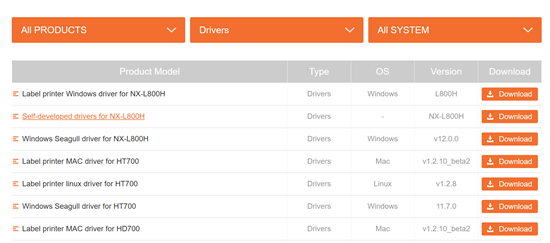
Barcode printer driver issues are still one of the most common reasons why thermal label printers fail to print correctly. In warehouses, retail stores, logistics stations, manufacturing sites, and small business shipping workflows, a barcode printer may look “broken” when the real problem is a Windows driver, port setting, label size configuration, or software compatibility conflict.
This guide explains the most common barcode printer driver problems in 2026, why they happen, and how to troubleshoot them step by step. It is written for IT administrators, warehouse managers, retail operators, system integrators, and business users who rely on barcode label printers for daily operations.
Quick Diagnosis: Common Barcode Printer Driver Symptoms
Symptom | Possible Driver-Related Cause | First Setting to Check |
Printer disappears after a Windows update | Driver replacement or device recognition issue | Installed driver and Device Manager |
Printer prints a test page but not labels | Software-driver mismatch | Label software and printer selection |
Label prints too small or too large | Wrong label size in driver | Stock size / page size |
Barcode is cut off | Page size, margin, or scaling error | Driver size and application page setup |
Barcode is blurry or cannot scan | Density, speed, DPI, or graphic rendering issue | Print density, speed, and resolution |
Printer skips labels | Wrong media type or sensor setting | Gap / black mark / continuous media |
Network printer shows offline | IP port or port monitor issue | TCP/IP port configuration |
USB printer creates “Copy 1” or “Copy 2” | USB port changed or duplicate device instance | Default printer and printer queue |
PDF label prints poorly | Browser/PDF scaling or image rendering issue | 100% scale and graphic mode |
Only some users can print | RDS/Citrix/session driver conflict | Server-side driver mapping |
1. Windows Update and Driver Compatibility Problems
Windows updates are a common trigger for barcode printer driver issues. After a major Windows 11 update or cumulative patch, some users may find that their barcode printer no longer prints correctly, disappears from the printer list, or is replaced by a generic driver.
This is especially common with older thermal label printers or specialized industrial printers that depend on legacy Windows drivers. Microsoft's long-term move toward modern, IPP-based printing has made driver compatibility a more important consideration for businesses that use barcode printers, especially when the printer requires advanced settings such as label size, print darkness, speed, cutter control, or printer-language support.
Common symptoms include:
•Complete loss of printing after a Windows update
•Blank labels or failed test pages
•The printer being replaced by a generic Windows driver
•Missing advanced settings such as darkness, speed, or media type
•Print jobs stuck in the queue
•The printer showing as offline even when connected
How to fix it:
First, check whether Windows has changed the installed driver. Open the printer properties and confirm that the printer is still using the manufacturer's driver rather than a generic class driver. If the driver has changed, remove the printer and reinstall the official driver from the manufacturer's website.
For business environments, test major Windows updates on a non-production computer before rolling them out across warehouse, POS, or production-line devices.
2. Driver Installation and Device Recognition Errors
Fresh driver installation can also cause problems, especially when the printer is connected before the official driver is installed. In some cases, Windows may automatically install a generic USB printing device. Once this happens, the official driver may fail to load correctly or the system may recognize the printer only partially.
Typical issues include:
•Printer not detected after USB connection
•Driver installation rollback or silent failure
•Printer appears in Device Manager but not in the print dialog
•Multiple printers with similar names
•Installation errors from the manufacturer's driver package
•The printer works on one PC but not another
This problem is common when several barcode printers are installed on the same computer, or when USB and network printer versions are mixed in one environment.
How to fix it:
Disconnect the printer first. Remove any old or generic printer instances from Windows Settings, Control Panel, and Device Manager. In Device Manager, enable hidden devices and remove inactive printer entries if necessary. Restart the computer, install the official driver, and then connect the printer when the installation wizard asks you to do so.
For barcode printers, it is usually better to install the correct model-specific driver instead of relying on automatic Windows detection.
3. Wrong Label Size or Stock Size in the Driver
Incorrect label size is one of the most common barcode printer driver problems. A barcode printer may be working normally, but if the driver is still set to Letter, A4, 4 x 6 inch, or another default size, the printed label will not match the actual media.
Common symptoms include:
•Only half of the label prints
•The barcode is cut off
•Text appears outside the label area
•The label prints too small or too large
•The print starts in the wrong position
•The first label is acceptable, but later labels drift
This often happens when the label design software, Windows driver, and actual label roll are using different sizes.
For example:
The physical label is 50 x 30 mm.
The Windows driver is set to 100 x 150 mm.
The PDF print window uses “Fit to page.”
The browser print scale is set to 95%.
Any one of these mismatches can cause barcode distortion or misalignment.
How to fix it:
Check the label size in three places:
•The barcode printer driver
•The label design software, such as BarTender, NiceLabel, ZebraDesigner, or other software
•The print dialog in PDF, browser, ERP, POS, or WMS systems
Make sure all three match the actual label width and height. For shipping labels, avoid “Fit to page” unless the platform specifically requires it. In most barcode label workflows, printing at 100% scale is safer.
4. 203 DPI vs 300 DPI Driver Mismatch
Barcode printers are commonly available in 203 DPI, 300 DPI, and sometimes 600 DPI versions. If the installed driver does not match the printer's actual resolution, the printed label may look different from the template.
A 203 DPI printer using a 300 DPI driver, or a 300 DPI printer using a 203 DPI template, may produce labels with incorrect proportions. This can affect barcode width, text size, QR code density, and label layout.
Common symptoms include:
•Barcode prints larger or smaller than expected
•Text is misaligned with the barcode
•Small barcodes cannot scan reliably
•QR Code or DataMatrix symbols look too dense
•A label template works on one printer but not another
How to fix it:
Confirm the printer's actual DPI from the model specification or printer configuration page. Then check that the installed driver uses the same resolution. If your company uses both 203 DPI and 300 DPI barcode printers, keep separate label templates for each resolution when necessary.
As a general rule, 203 DPI is often enough for standard shipping labels and larger warehouse labels, while 300 DPI is better for small product labels, dense Code 128 labels, QR codes, electronics labels, jewelry labels, and medical or laboratory labels.
5. Media Type and Sensor Setting Errors
Barcode printers need to detect where one label ends and the next begins. The driver or printer settings must match the actual media type.
Common media types include:
•Gap labels
•Black mark labels
•Continuous labels
•Notched labels
•Receipt paper or continuous thermal paper
If the driver sends the wrong media setting, the printer may not stop at the correct position.
Common symptoms include:
•Printer skips labels
•Printer feeds several blank labels
•Print position changes from label to label
•The printer stops in the middle of a label
•Media error or blinking status light
•The first label is correct, but later labels drift
How to fix it:
Check whether the printer is set to the correct media type: gap, black mark, or continuous. After changing the media type, perform printer calibration. Calibration is especially important after changing label rolls, switching from gap to black mark labels, replacing media, or reinstalling the driver.
6. USB Port Changes and Duplicate Printer Copies
A very common Windows barcode printer issue occurs when users move the printer to another USB port. Windows may create a new printer instance, such as:
•Barcode Printer
•Barcode Printer Copy 1
•Barcode Printer Copy 2
The printer may work when printing a Windows test page, but the label software, POS system, ERP, or shipping platform may still be pointing to the old printer queue.
Common symptoms include:
•Print jobs go to the wrong queue
•The printer appears ready but does not print
•The software cannot find the printer
•There are multiple similar printer names
•One application prints successfully, but another does not
How to fix it:
Remove duplicate printer instances and keep only the correct one. Set the correct printer as the default printer if your software depends on the Windows default printer. Then update the printer selection inside the label software, POS system, ERP, or shipping application.
For production environments, avoid frequently changing USB ports. Label the USB port and printer cable if necessary.
7. Network and IP Port Problems
Ethernet and Wi-Fi barcode printers are common in warehouses, retail back offices, production lines, and logistics stations. These printers often depend on a TCP/IP port in the Windows driver. If the printer's IP address changes, the driver may still send print jobs to the old address.
Common symptoms include:
•Network printer shows offline
•Print jobs remain in the queue
•Printing is slow or intermittent
•The printer works after rebooting, then fails again
•Only some computers can print to the same printer
•Wi-Fi barcode printer disconnects during operation
How to fix it:
Check the printer's current IP address and compare it with the IP address in the Windows printer port. If they do not match, update the port or reinstall the network printer. For business environments, assign a static IP address or DHCP reservation to each network barcode printer. This prevents the printer from changing IP addresses unexpectedly.
For Wi-Fi printers, also check signal strength, router settings, and whether the printer is switching between networks.
8. Print Quality Problems Caused by Driver Settings
Not every print quality problem is caused by the printhead or label material. The driver can also affect barcode quality by changing density, speed, resolution, media type, and graphic rendering.
Common symptoms include:
•Barcode prints too light
•Barcode prints too dark
•Barcode edges look blurry
•White lines appear in the barcode
•QR Code or DataMatrix symbols are incomplete
•Printed barcode looks fine but does not scan
•Labels smudge or fade quickly
Important driver settings include:
•Print density / darkness
•Print speed
•Media type
•DPI / resolution
•Graphic mode
•Dithering or image processing mode
•Thermal transfer or direct thermal mode
Many users increase darkness when a barcode looks unclear. However, too much darkness can cause the black bars to expand, making narrow spaces too small for scanners to read. For high-density barcodes, small labels, and 2D codes, lowering speed and using the correct density often works better than simply making the print darker.
How to fix it:
Start with the manufacturer's recommended density and speed. If the barcode is too light, increase density gradually. If the barcode is too dark, blurry, or difficult to scan, reduce density or slow down print speed. For thermal transfer printers, make sure the ribbon type matches the label material.
9. PDF, Browser, and Graphic Rendering Problems
Many barcode labels are printed from PDF files, browsers, web-based shipping platforms, ERP systems, or online order systems. In these workflows, the barcode may be rendered as an image instead of being generated directly by the printer language.
This can create problems when the driver scales, compresses, dithers, or re-renders the barcode image.
Common symptoms include:
•PDF shipping label barcode is blurry
•Barcode prints clearly on screen but poorly on label
•Browser printing changes the label size
•Amazon, Shopify, USPS, or carrier labels print with distorted barcodes
•QR Code edges look rough
•The same label prints differently from Adobe Acrobat and Chrome
How to fix it:
Print at 100% scale whenever possible. Avoid “Fit to page” unless required by the platform. Use the correct label size in both the driver and the print dialog. If the software supports printer-native commands such as ZPL, EPL, or TSPL, direct printer-language output may produce more reliable barcode quality than printing low-resolution barcode images.
For business-critical barcode workflows, test labels with the actual scanner before using them in production.
10. Label Software Compatibility Conflicts
Barcode printer drivers often work together with label design software such as BarTender, NiceLabel, ZebraDesigner, or other labeling platforms. Problems occur when the software and driver use conflicting settings.
Common symptoms include:
•Preview looks correct, but printed label is misaligned
•Barcode scans in the software preview but not after printing
•The same template prints differently on different computers
•The software cannot detect the correct printer options
•Advanced options such as cutter, peeler, or RFID are missing
•2D barcodes print incorrectly
How to fix it:
Check whether the label software is using its own printer settings or the Windows driver settings. Make sure the label size, orientation, media type, speed, density, and DPI are consistent. If the software offers a recommended driver, use it. In some enterprise environments, Seagull Scientific drivers or other specialized drivers may provide more stable control for label design software.
11. ERP, WMS, POS, and Remote Desktop Printing Issues
In warehouses, manufacturing, logistics, and retail environments, barcode printers are often controlled by ERP, WMS, POS, or remote desktop systems. These environments can create additional driver challenges.
Common problems include:
•ERP system prints to the wrong printer
•WMS cannot access local USB printer
•Remote Desktop session does not map the printer correctly
•Citrix or Terminal Server only allows some users to print
•POS system detects the printer but cannot send labels
•Cloud printing plugin conflicts with the local driver
•Different users get different print results
These issues are often caused by driver name mismatches, printer redirection problems, permission settings, or inconsistent driver versions between local computers and servers.
How to fix it:
Standardize printer names and driver versions across the environment. For remote desktop or server-based printing, confirm whether the barcode printer should be installed locally, on the server, or through a print server. Avoid mixing multiple driver versions for the same printer model in one production workflow.
For high-volume barcode printing, direct printer-language output from ERP or WMS systems may reduce dependency on Windows rendering.
12. Print Spooler and Queue Problems
Windows Print Spooler problems can stop barcode printing completely. A failed or corrupted print job may block the queue and prevent new labels from printing.
Common symptoms include:
•Print job stuck in queue
•Printer status shows “Error” or “Offline”
•Printer is connected but does not respond
•Deleting a print job takes a long time
•All printers stop working after one failed job
How to fix it:
Cancel all jobs in the print queue. Restart the Print Spooler service. If the problem returns, remove the printer driver and reinstall a clean version. Check whether a specific application is sending corrupted jobs. If only one label template causes the issue, test with a simple label to determine whether the problem is in the template, driver, or printer.
Step-by-Step Troubleshooting Checklist
When a barcode printer driver problem occurs, follow this order:
1. Confirm the printer model, Windows version, driver version, firmware version, and connection type.
2. Check whether Windows replaced the manufacturer driver with a generic driver.
3. Remove duplicate printer instances, especially USB “Copy 1” or “Copy 2” devices.
4. Verify that the driver label size matches the actual label roll.
5. Confirm that the software label size matches the driver label size.
6. Check printer DPI and make sure the driver resolution matches the printer hardware.
7. Set the correct media type: gap, black mark, or continuous.
8. Calibrate the printer after changing labels or reinstalling the driver.
9. Adjust density and speed gradually instead of making large changes.
10. For network printers, verify IP address and TCP/IP port settings.
11. Test with a simple label before testing ERP, WMS, POS, or browser output.
12. If PDF labels print poorly, test 100% scale and another PDF reader.
13. Record the error code, driver version, firmware version, and print sample before contacting support.
Prevention Tips for Barcode Printer Driver Problems
Driver problems are easier to prevent than to fix during a busy shipping shift or warehouse operation. Businesses that depend on barcode printing should create a basic driver management process.
Recommended practices include:
✔ Download drivers only from official manufacturer websites.
✔ Avoid third-party driver repositories.
✔ Install the driver before connecting a USB printer when recommended.
✔ Keep a record of driver and firmware versions for each printer.
✔ Standardize driver versions across production computers.
✔ Test Windows updates before deploying them to all barcode printing stations.
✔ Use static IP addresses or DHCP reservations for network printers.
✔ Back up label templates before changing drivers.
✔ Keep screenshots of working driver settings.
✔ Recalibrate the printer after changing label rolls, media type, or drivers.
✔ Keep spare printers or backup workstations ready for critical environments.
For companies with multiple barcode printers, it is also helpful to document each printer's model, DPI, label size, media type, connection method, and assigned workstation.
When to Consider Direct Printer Language Printing
In some workflows, using a Windows driver is convenient and flexible. However, for high-volume or mission-critical barcode printing, direct printer-language output may be more stable.
Common printer languages include:
ZPL
EPL
TSPL
CPCL
ESC/POS
Direct printer-language printing can reduce problems caused by Windows scaling, PDF rendering, browser printing, and graphic conversion. It is especially useful for ERP, WMS, logistics, and manufacturing systems that print large volumes of standardized labels.
However, direct command printing usually requires technical setup and should be tested carefully before production use.
Final Thoughts
Barcode printer driver issues in 2026 are not limited to simple installation failures. Many problems come from the interaction between Windows updates, USB or network ports, label software, DPI settings, media calibration, PDF rendering, and enterprise systems such as ERP, WMS, POS, RDS, or Citrix.
When a barcode printer fails, do not assume the hardware is defective immediately. Start by checking the driver, label size, printer resolution, media type, port configuration, and application settings. In many cases, the printer can be restored by reinstalling the official driver, correcting the label size, recalibrating the media sensor, or fixing the USB or network port.
A well-managed barcode printer driver setup helps reduce downtime, improve barcode scan accuracy, and keep warehouse, retail, logistics, and manufacturing workflows running smoothly.