Barcode Label Printers Compatible With Shipping Platforms: What to Check
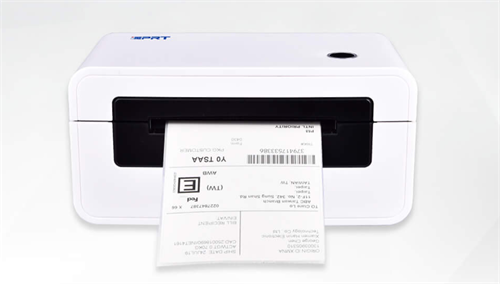
A shipping platform logo on a printer page does not tell you enough about compatibility.
What matters is whether the printer can handle the label format your shipping software generates, work with your operating system and driver, print the required label size correctly, and fit the way your packing station actually operates.
For many ecommerce sellers, that means a 4×6 direct thermal label printer connected to a Windows or macOS computer. In a warehouse, the requirements may extend to Ethernet, multiple packing stations, automated printing, ZPL workflows, centralized management, or integration with a WMS.
So skip "Does this work with ShipStation?" — ask instead:
How does your shipping platform actually send labels to the printer?
Answer that, and you've avoided most compatibility headaches.
What Does "Compatible With a Shipping Platform" Actually Mean?
Printer compatibility has several layers. A printer can work perfectly for one shipping workflow but be a poor fit for another using the same platform.
Check these five areas first:
Compatibility Check | What to Verify |
Label format | PDF, PNG, ZPL or another output format |
Label size | 4×6 in, 100×150 mm, A6 or another required size |
Operating system | Windows, macOS, Android, iOS or other environment |
Connection | USB, Ethernet, Wi-Fi or Bluetooth |
Printing workflow | Browser printing, downloaded PDF, direct printing or automated system output |
This is why "compatible" needs context. A printer may print a downloaded 4×6 PDF from a shipping platform without any special integration. That does not necessarily mean the platform has tested, certified or directly supports that printer model.
The difference becomes more important as shipping volume grows.
1. Check the Shipping Label Format First
Start with the file or command format generated by your shipping software.
For small and midsize ecommerce operations, 4×6 PDF is one of the most practical formats because it can usually be printed through a standard operating-system driver. You generate the label, open or preview it, select the thermal printer and print.
ShipStation, for example, supports thermal-label layouts for 4×6-inch, 100×150 mm and A6 media. Users can print through a browser, download a PDF, or use ShipStation Connect for a more direct printing workflow.
Shippo also supports 4×6 PDF labels, alongside several other label sizes. It additionally provides ZPL printing options for workflows that use compatible printers. That distinction matters.
PDF printing
PDF is usually the easier route when:
• labels are created in a browser;
• the printer has a working Windows or macOS driver;
• users manually select the printer;
• shipping volume is modest;
• direct system-to-printer communication is not required.
ZPL printing
ZPL is a printer command language widely used in barcode and logistics environments. Instead of rendering a normal page through a PDF viewer, a system can send printer instructions to a compatible device.
This can make sense for higher-volume workflows, existing warehouse software or applications already built around ZPL.
But do not assume every thermal label printer accepts ZPL.
If your shipping software or WMS outputs ZPL directly, verify the printer's supported command languages before purchase. The same principle applies to EPL, TSPL and other printer languages.
For a browser-based PDF workflow, command-language compatibility may not matter at all.
2. Make Sure the Printer Handles 4×6 Shipping Labels Correctly
For parcel shipping, 4×6 inches is the key label size to check.
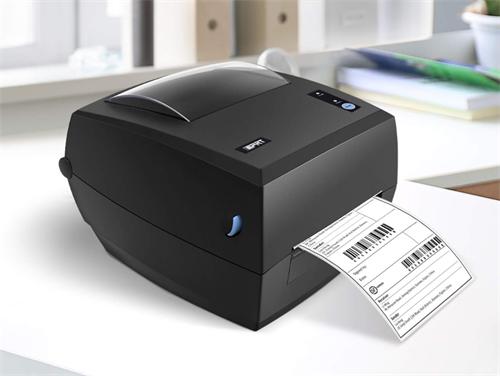
Shopify provides a Thermal setting for 4×6-inch, 100×150 mm or A6 shipping labels. WooCommerce Shipping also lets users choose 4×6 labels when printing with a thermal printer. Easyship provides a 4×6 thermal printing option in addition to standard paper formats.
Check:
• maximum print width;
• supported media width;
• roll diameter;
• gap or black-mark sensing;
• label loading method;
• driver paper-size settings.
For a standard 4×6 shipping workflow, a 4-inch desktop thermal label printer is usually the natural fit.
Smaller 2-inch printers may work well for product labels, shelf labels or inventory barcodes, but they are not designed for standard 4×6 parcel labels.
Also check scaling.
A correctly generated shipping label can still print badly if the operating system, browser or PDF viewer scales it to the wrong page size. Cropped barcodes, undersized labels and unexpected margins are often configuration problems rather than printer failures.
Shippo specifically identifies incorrect 4×6 settings and printer-driver configuration as common causes of labels printing too small or being cut off.
3. Check Windows, macOS and Driver Compatibility
Shipping platforms normally generate the label. The computer still needs a reliable way to communicate with the printer.
That makes the printer driver a critical part of compatibility.
Before buying a shipping label printer, verify support for the operating systems used at your packing stations.
For example:
Windows warehouse workstation
A USB or networked thermal printer with a maintained Windows driver is usually straightforward.
Mac-based ecommerce business
Confirm that the printer has current macOS support rather than assuming a Windows driver has a direct equivalent.
Phone or tablet workflow
Bluetooth or Wi-Fi alone does not guarantee mobile printing. Check the platform, mobile operating system and printer software together.
Shopify illustrates this distinction clearly. Its current supported shipping-printer list includes models with different Windows, macOS, Android and iOS support profiles. Shopify also separates general label printing from its list of hardware specifically tested for compatibility.
The practical rule is simple:
Check software support, not just the connection icon on the printer box.
A printer having Bluetooth does not mean every iPhone shipping app can print to it.
4. USB, Wi-Fi, Ethernet or Bluetooth: Choose for the Workflow
Connectivity affects how easy the printer is to deploy, but more interfaces are not automatically better.
USB: best for a dedicated packing station
USB is the most straightforward option when one computer controls one shipping label printer. It offers a stable connection with minimal network configuration.
Ethernet: better for shared business environments
Ethernet is often the better choice for warehouses where multiple workstations need reliable network access to a printer. It prioritizes stable connectivity over flexible placement.
Wi-Fi: useful for flexible printer placement
Wi-Fi reduces cabling and gives you more flexibility in where the printer is placed. It can work well when running Ethernet to a packing station is inconvenient, but reliable printing still depends on network quality, driver support, and the shipping platform's print workflow.
Bluetooth: for lightweight or mobile setups
Bluetooth works well for short-range, one-to-one printing from laptops, tablets, or mobile devices. It is convenient for lightweight workflows, but less suitable for shared printers or multi-user packing environments.
There is an important platform-specific exception here.
ShipStation Connect recommends USB-connected printers for its direct-print workflow. Some wireless and network printers may work, but they are not fully supported for troubleshooting. PDF download and browser printing remain separate options.
That is a good example of why hardware connectivity and software compatibility must be checked together.
5. Compare How Major Shipping Platforms Handle Printing
The major ecommerce shipping platforms share some requirements, but their printing workflows are not identical.
Shipping Platform | Typical Thermal Label Option | Printing Considerations |
ShipStation | 4×6 / 100×150 mm / A6 | Browser print, PDF download or ShipStation Connect |
Shippo | 4×6 PDF; additional formats available | PDF workflow plus ZPL support for compatible setups |
Shopify | 4×6 / 100×150 mm / A6 | Offers a defined list of Shopify-supported label printers |
WooCommerce Shipping | 4×6 thermal or 8.5×11 | Labels can be opened through the browser print dialog |
Easyship | 4×6 thermal plus A4/Letter options | Label format is configured in Printing Options |
A printer can fit several platforms because they all generate a standard 4×6 output that the printer can handle through its driver.
Another workflow may need a platform-specific connector, tested mobile support or a particular printer language.
Verify the path from order to label to printer, not just the names on a compatibility list.
6. Direct Thermal Is Usually the Practical Choice for Shipping Labels
Most parcel shipping labels only need to remain readable through fulfillment, transit and delivery.
That makes direct thermal printing a practical choice for many shipping applications.
It requires no ribbon. Operators only need to load the correct thermal labels, which keeps media changes simple at a busy packing station.
Thermal transfer has different strengths. It uses a ribbon and is better suited to labels requiring longer life or greater resistance to abrasion, chemicals or environmental exposure.
For example:
• a 4×6 UPS, FedEx or USPS parcel label may only need direct thermal media;
• a long-life warehouse asset label may justify thermal transfer;
• a chemical container label may require a synthetic material and matched resin ribbon.
Do not buy a thermal-transfer printer simply because it sounds more "commercial."
Choose the print method based on label life and environment.
7. Think Beyond "Can It Print?" for High-Volume Shipping
A printer that successfully produces one test label is technically working. That does not mean it is the right printer for 800 shipments every afternoon.
Once shipping becomes operationally important, look beyond basic compatibility.
Consider:
• labels per day;
• labels per peak batch;
• continuous printing time;
• number of packing stations;
• roll-change frequency;
• network requirements;
• print speed;
• printer memory;
• remote management;
• downtime tolerance.
A small desktop shipping label printer may be ideal for an online store processing dozens of parcels throughout the day.
A warehouse processing concentrated outbound waves has a different workload. Larger media capacity, more robust construction, Ethernet connectivity and easier replacement of wear parts may matter more than a compact footprint.
There is also a middle ground.
You do not automatically need an industrial printer because you use ShipStation or connect to a WMS. A higher-performance commercial desktop barcode printer can be enough when the environment is controlled and continuous duty is moderate.
Choose the printer class from the workload—not from the software logo.
8. Check the Actual Printing Workflow Before You Buy
Run through one real order before approving a printer for deployment.
For example:
Order created in Shopify
→ shipping label generated
→ 4×6 thermal format selected
→ printer appears correctly in the operating system
→ label prints at 100% scale
→ barcode and address are clear.
Or:
Order released from WMS
→ shipping software creates a ZPL job
→ job is routed to a network printer
→ printer interprets the command language correctly
→ label prints without manual intervention.
Those are two very different definitions of compatibility.
For one, a reliable printer driver and correct 4×6 media may be enough.
For the other, command-language support, network architecture and application integration become critical.
Barcode Label Printer Compatibility Checklist
Before choosing a barcode label printer for ShipStation, Shippo, Shopify, WooCommerce or another shipping platform, confirm:
✔️ The printer supports the required 4×6, 100×150 mm or A6 label size.
✔️ Its driver supports the Windows or macOS version used at the packing station.
✔️ The shipping platform can generate a label format your workflow can print.
✔️ PDF labels print at the correct size without cropping or unintended scaling.
✔️ ZPL or another command language is supported if your system sends raw printer commands.
✔️ USB, Ethernet, Wi-Fi or Bluetooth fits the actual software workflow.
✔️ Direct thermal or thermal transfer matches the required label lifespan.
✔️ The printer can handle your peak batch volume, not just your average daily total.
✔️ Media rolls are easy to source in the required size.
✔️ A real shipping label has been test-printed before wider deployment.
Choose for the Workflow, Not the Platform Logo
A barcode label printer compatible with shipping platforms does not need to carry every ecommerce brand name on its packaging.
For many businesses, compatibility comes down to four practical requirements: the printer handles 4×6 shipping labels, has a reliable operating-system driver, accepts the platform's output format, and connects in a way that fits the packing workflow.
ShipStation, Shippo, Shopify, WooCommerce and Easyship can all support thermal-label workflows, but they do not handle printing in exactly the same way.
Start with the software path. Then choose the hardware.
That approach is far more reliable than buying a printer based on speed, connectivity or a vague "compatible with ecommerce platforms" claim.